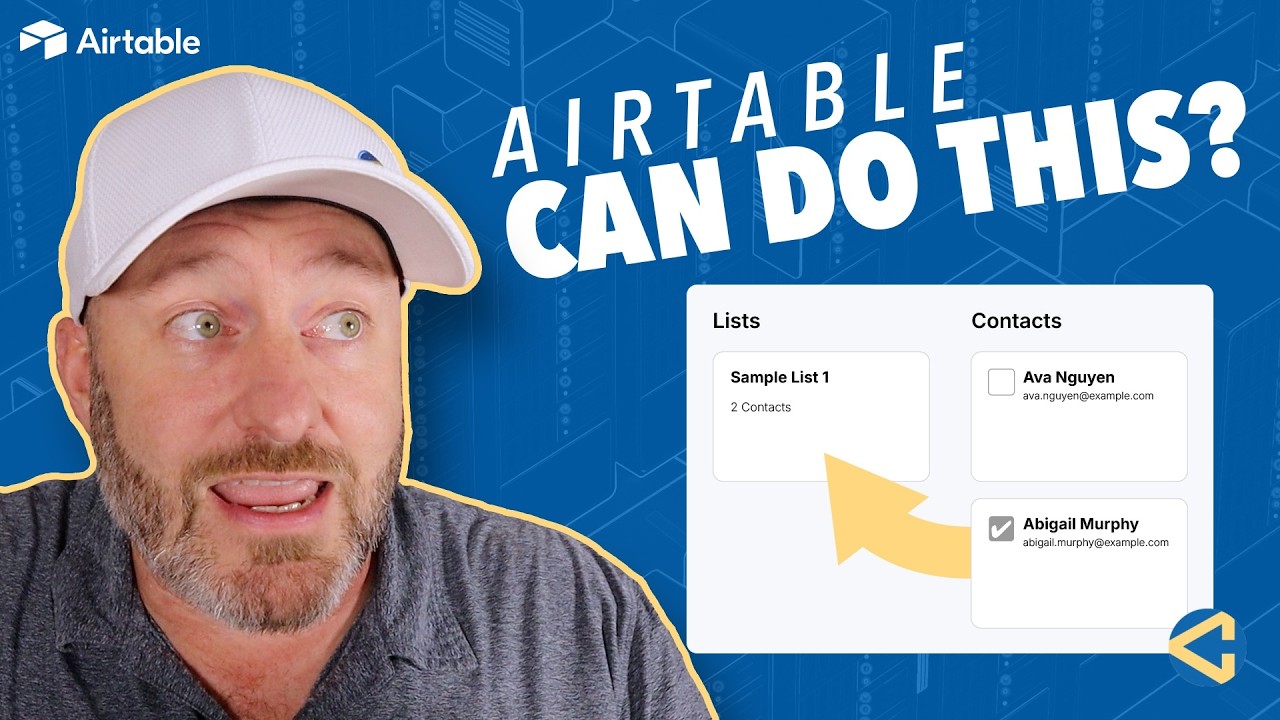
If you're struggling to get Airtable to show your data exactly the way you want to see it, the limitation usually isn't your data—it's the interface layer. Interfaces are the front end of your Airtable system: the part you share with your team, locked down so nobody breaks the database underneath. But when you build one from Airtable's out-of-the-box options, you'll notice that every native interface type displays data from one table at a time. The only exception is the list view, which can show three layers—but then you're back to rows and columns, which is exactly what interfaces are supposed to improve on. If your workflow needs information from multiple tables on the same screen, the native options run out of road quickly.
This isn't a theoretical gap. The example in this walkthrough came directly from paying clients: a simple two-table structure with contacts on one side and lists on the other, connected by a many-to-many relationship. The team's whole job was to create a list, pull up their contacts, and assign people to that list—several at a time. A natural workflow, and one that Airtable's native interfaces simply can't deliver: there's no multi-select on cards, and no way to see both tables side by side in a usable layout.
This is where Omni, Airtable's built-in AI assistant, changes the equation. With Omni enabled in your workspace (and AI credits available), you can choose to generate a bespoke layout entirely from natural language. The quality of the result tracks the quality of the prompt, so spell out everything: which tables are involved, how they're related, and exactly what you want to do. In this case, the prompt specified lists in one column on the left, contacts in three columns on the right, filters above the contacts, and the key requirement—select several contacts at once and drag them onto a list to link them.
About ninety seconds later, the first version was nearly identical to the vision: clickable contact cards, drag-and-drop linking that updated the list counts instantly, and working filters. Just as valuable was what Omni added without being asked—the layout stacks to a single column on phones, a Select Shown and Clear control for bulk selection, and an alternative add button for touchscreens where drag-and-drop doesn't work well. One habit worth building: always read the notes the AI returns alongside the output. Omni documented every behavior it implemented and flagged ideas it deliberately left out.
The first pass intentionally omitted a create-new-list option—a little trap to see whether Omni would add unrequested features. It didn't, but it surfaced the idea as a suggestion, along with two more: click a list to filter contacts to its members, and remove a contact from a list. Feeding those three suggestions back as a second prompt took less than a minute to build. The published interface then filtered contacts on a list click, created new lists from an in-interface modal, and removed contacts with a single hover-and-click. Three requests in one prompt, all shipped.
If your workflow is a little out of the ordinary, you no longer have to accept whatever Airtable's native interface types prescribe. With a well-written prompt, Omni gives you full creative license over the interface layer—multi-table layouts, bulk actions, and UX touches you didn't think to ask for—while your data stays exactly where it belongs. The lesson that carries beyond this build: be specific about what you want, then let the AI's own suggestions drive the next iteration.
If you found value in this content, give us a thumbs-up and subscribe for more insights. Visit our website for a wealth of resources and continue your journey in building smarter solutions.

Gareth Pronovost is the founder of GAP Consulting, an Airtable-first consultancy that helps businesses replace manual workflows with systems that scale. A former corporate finance analyst turned no-code educator, he has taught hundreds of thousands of builders through his YouTube channel and led systems builds for organizations ranging from solo founders to Disney and Ticketmaster.

The leading no-code consultancy. We build Airtable, Zapier, and Fillout systems for businesses that are ready to stop doing things manually.